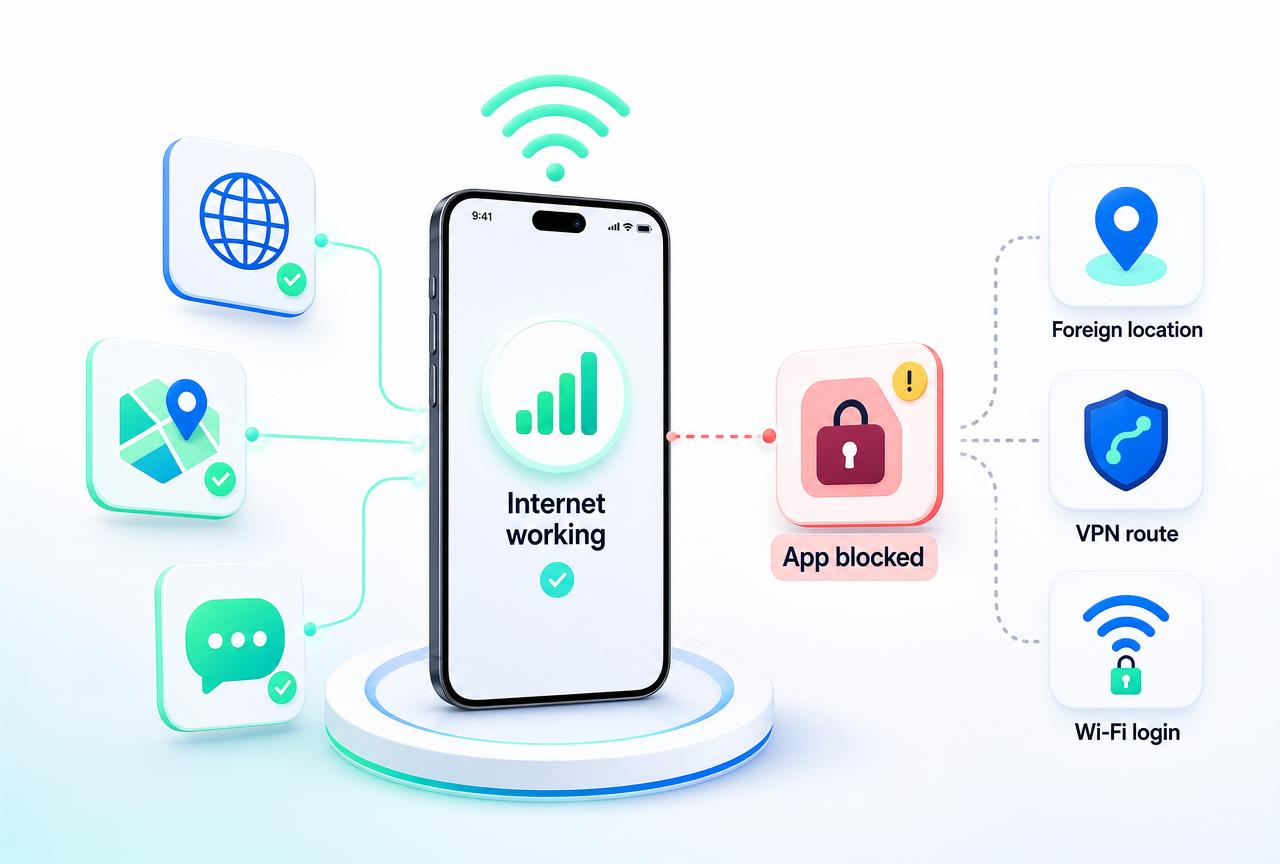
Quick answer
Why does one app not work abroad when the internet works?
If other apps and websites load, your eSIM connection is probably working. The failing service may be reacting to your foreign internet location, VPN route, account country, security checks, public Wi-Fi login or an app problem. Test another website, try the included VPN both on and off, restart or update the app, and check whether the service has its own regional or account restrictions.
If the browser, maps and several unrelated apps all fail, use the eSIM data not working guide instead.
App troubleshooting snapshot
- First test
- Browser and another app
- Public Wi-Fi
- Complete the login page
- VPN
- Test on, off or another location
- One app only
- Update or contact the service
Avoid these mistakes
- Deleting the eSIM
- Guessing APN settings
- Repeated blocked logins
- Changing account country
Is the internet broken or only one app?
Test two or three unrelated services before changing settings. This tells you whether the problem is the connection or the individual service.
Connection failing
The internet connection is failing
- Browser cannot open a normal website
- Maps cannot load
- Messaging apps cannot send
- Several unrelated apps fail
- Mobile data appears offline
One app failing
One app or website is failing
- Browser and maps work
- Other apps load normally
- One bank, streaming service or work tool fails
- The issue changes when VPN is turned on or off
- The issue occurs only on hotel or airport Wi-Fi
Continue with this guide.
Do not edit APN settings or delete the eSIM when general internet access is already working.
Why apps behave differently abroad
Apps and websites can use more than the basic internet connection. They may also evaluate your apparent location, account country, device settings, security risk and network route.
Foreign internet location
The service sees an internet connection from another country and may show different content or additional security checks.
Account-country rules
The account, subscription or payment method may be tied to a particular country or region.
Security and fraud checks
Banks, payment services and work tools may challenge unfamiliar locations or IP addresses.
Local network restrictions
A destination network may restrict a website, app or category of service even while normal internet access works.
VPN or proxy detection
Some services refuse known VPN or proxy routes, while other services work better through a different VPN location.
Captive public Wi-Fi
Hotel, airport or café Wi-Fi may require a browser login before apps receive full internet access.
App session or cache
An app may retain an old location, failed login, stale session or corrupted cached response.
Device settings
Incorrect date, time, location permission or outdated software can affect authentication and service behaviour.
First checks
- Open a normal website in the browser.
- Test another unrelated app, such as Maps or messaging.
- Confirm the device is not stuck on public Wi-Fi that still needs a login.
- Try the failing service using mobile data instead of public Wi-Fi.
- Close and reopen the failing app.
- Check for an app update.
- Confirm the phone’s date and time are set automatically.
- Test the service with the included VPN on.
- Test the service with the included VPN off.
- Try another available VPN location where appropriate.
- Check whether the service reports an outage or account restriction.
- Avoid repeated login attempts if the app is showing a security warning.
Start with the symptom
Do not troubleshoot a working data connection as if it were offline
When other apps and websites work, changing APN, roaming or the installed eSIM profile is unlikely to fix one service-specific problem.
Test internet → Check network → Test VPN → Fix the app
The correct troubleshooting flow
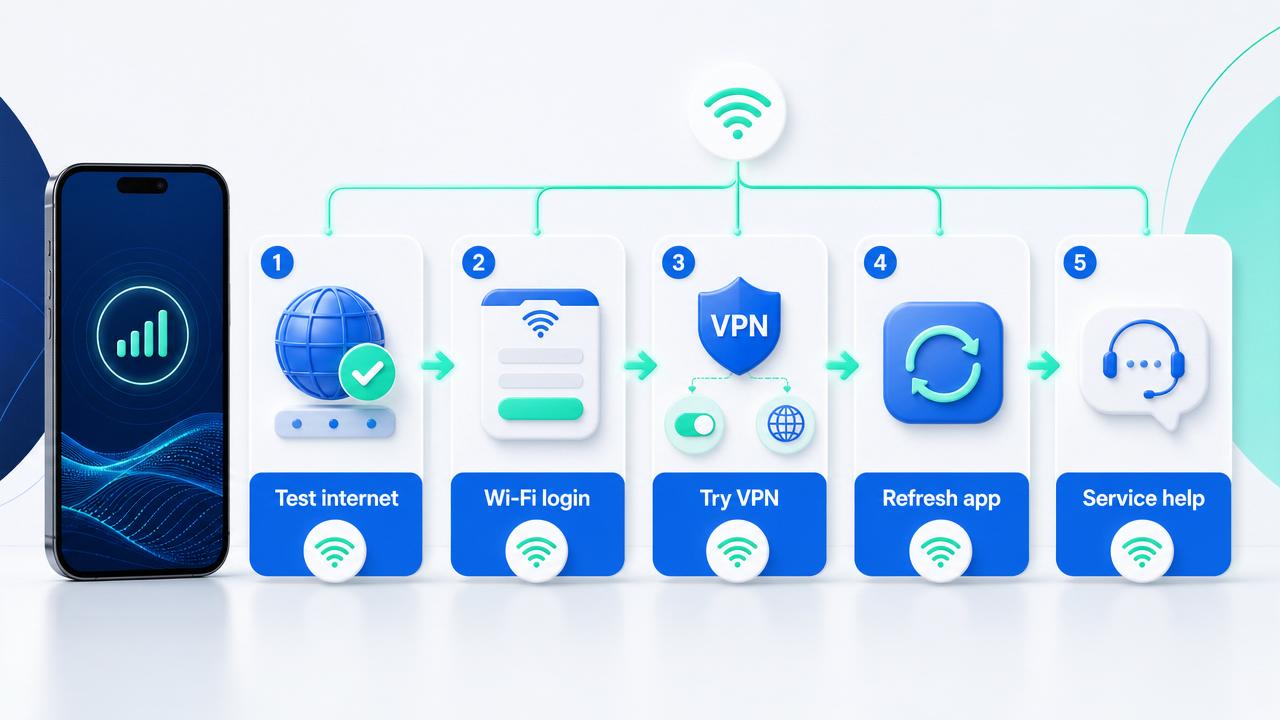
Connection
Test another website or app
Confirm whether general internet access is working.
Network
Check public Wi-Fi login
Complete any hotel, airport or café sign-in page before testing again.
VPN
Try VPN on, off or another location
The service may react differently to the current internet route.
App
Restart, update or contact the service
Treat it as an app-specific problem after the connection checks pass.
Try the included VPN on and off
The included VPN changes the internet route and apparent location used by apps and websites. Depending on the service, turning it on, turning it off or choosing another location may change the result.
Try the VPN on
Useful when a local network restricts a service or the app behaves differently through the destination’s normal internet connection.
Try the VPN off
Useful when a bank, payment app, streaming service or work system refuses VPN or proxy traffic.
Try another location
Useful when the current VPN route is blocked, slow or treated as an unfamiliar location.
A VPN does not guarantee access to every service. The app or website can still apply its own account, region, security and VPN-detection rules.
Banking and payment apps
Banks and payment services often apply stricter security checks when a device, country or internet address changes.
- Use the official app or official website.
- Confirm the phone’s date and time are correct.
- Try the service with the VPN off.
- Try mobile data instead of hotel or airport Wi-Fi.
- Complete any verification request through the bank’s official process.
- Avoid repeated login attempts after a security warning.
- Do not change the bank account’s country merely because you are travelling.
- Contact the bank when the account itself has been restricted.
Security block
An app-specific security warning is not an eSIM failure
If other apps are online, the bank or payment service must resolve account-level restrictions.
Streaming and entertainment apps
Streaming catalogues, subscriptions and availability can vary by country. A service may also identify or restrict certain VPN routes.
- Confirm general internet access works.
- Close and reopen the app.
- Check for an app update.
- Confirm the correct subscription account is signed in.
- Try the included VPN with an appropriate available location.
- Try another VPN location if the first route fails.
- Try the service with the VPN off if it reports a proxy or VPN error.
- Check whether the content is available under the account’s subscription and region rules.
The included VPN can change the apparent internet location, but it cannot override an app’s account, subscription or content-licensing rules.
Work, email and authentication apps
Company systems may block unfamiliar countries, networks, devices or VPN routes. Multi-factor authentication can also fail when the device clock or account session is wrong.
- Confirm automatic date and time are enabled.
- Try the work app with VPN off.
- Try the approved company VPN instead if required by the employer.
- Check whether the organisation restricts foreign sign-ins.
- Complete the organisation’s normal multi-factor authentication process.
- Do not repeatedly approve unexpected login prompts.
- Contact the organisation’s IT team for account or device-policy blocks.
Do not attempt to bypass employer security controls.
Hotel and airport Wi-Fi
Public Wi-Fi can appear connected before the network has granted full internet access. A browser sign-in, room number, email address or acceptance screen may still be required.
- Temporarily disconnect the VPN if the Wi-Fi login page does not appear.
- Open the browser.
- Visit a normal non-sensitive website or reopen the Wi-Fi network prompt.
- Complete the public Wi-Fi login or accept its terms.
- Confirm a normal website loads.
- Reconnect the included VPN when desired.
- Test the failing app again.
Warning
Do not enter banking credentials into a public Wi-Fi login page. Only provide the information genuinely required by the venue’s network.
Restart, update or reset the app
iPhone and iPad
- Close and reopen the app.
- Restart the device.
- Check for an app update.
- Check for an iOS or iPadOS update.
- Reinstall the app only as a later step.
- Understand that deleting an app may remove locally stored app data.
- Contact the app developer if only that app continues to fail.
Android
- Force stop and reopen the app.
- Restart the device.
- Check for an app update.
- Check for an Android system update.
- Clear the app cache where appropriate.
- Clear app storage only after understanding that it can sign the user out or remove local app data.
- Reinstall only as a later step.
- Contact the app developer if only that app continues to fail.
Location, account region and time
Some services compare several signals, including the internet location, device location, account country, payment country and device clock.
| Internet location | Can change when travelling or when a different VPN location is selected. |
|---|---|
| Device location | May depend on the app’s location permission and GPS settings. |
| Account country | Can be tied to subscriptions, payments, identity or service eligibility. |
| Date and time | Incorrect device time can break sign-in, security codes and authentication. |
Do not change an account country casually. It can affect subscriptions, balances, payment methods or service eligibility.
When it is actually an eSIM problem
Return to connection troubleshooting when the problem affects the complete internet connection rather than one service.
- Browser cannot load normal websites.
- Maps cannot load.
- Several unrelated apps fail.
- The phone shows No Service, SOS or Searching.
- The travel eSIM is not selected for mobile data.
- The bundle is not active.
- The phone has signal but no app can use data.
What not to do
- Do not delete the eSIM because one app fails.
- Do not rescan the eSIM QR code.
- Do not guess APN settings when other apps are online.
- Do not repeatedly change SIM or roaming settings for one app.
- Do not assume the VPN always fixes every service.
- Do not assume the VPN is always the cause.
- Do not repeatedly attempt a blocked bank login.
- Do not change an account country casually.
- Do not clear app storage without understanding what local data may be removed.
- Do not share bank, app, VPN or account credentials with support.
- Do not bypass employer or service security controls.
Remember
One failing app usually means one service-specific problem
Confirm general internet access first, then troubleshoot the app, network route or service account without changing the installed eSIM.
Troubleshooting checklist
Work through these steps in order and stop when the service begins working.
- Open a normal website in the browser.
- Test an unrelated app.
- If several services fail, switch to the eSIM data not working guide.
- If connected to public Wi-Fi, complete its browser login.
- Try the failing service using travel eSIM mobile data.
- Close and reopen the app.
- Restart the phone.
- Check for an app update.
- Check for an operating-system update.
- Confirm automatic date and time are enabled.
- Test with the included VPN on.
- Test with the included VPN off.
- Try another available VPN location.
- Check whether the service is experiencing an outage.
- Review the service’s country, subscription or account requirements.
- On Android, clear cache when appropriate.
- Reinstall the app only after considering stored data and sign-in requirements.
- Contact the app, bank, employer or website when the restriction belongs to that service.
- Contact eSIMbundle support only when the wider internet connection or included VPN access itself is failing.
Official sources
The app-recovery and public Wi-Fi steps in this guide follow current Apple and Google support guidance, adapted for travellers using an eSIM and the included VPN.
Frequently asked questions
Why do some apps not work abroad even though mobile data works?
The app may be reacting to your foreign internet location, account country, security rules, VPN route, public Wi-Fi login or an app-specific problem. If other unrelated apps and websites work, the eSIM connection itself is probably working.
How can I tell whether the eSIM or the app is the problem?
Open a normal website and test another unrelated app. If both work, troubleshoot the individual app. If the browser, maps and several apps all fail, use the eSIM data not working guide.
Can the included VPN make an app work abroad?
It can help when a service behaves differently because of the destination network or apparent internet location. It does not guarantee that every app or website will work because services can apply their own account, region and VPN-detection rules.
Why does an app work when the VPN is off?
Some banks, payment services, streaming platforms and work systems restrict known VPN or proxy routes. Temporarily disconnect the VPN and test again.
Why does an app work only when the VPN is on?
The normal destination network may restrict the service or the service may behave differently from the destination’s internet location. The VPN provides another available route and apparent location.
Why does a banking app block me abroad?
Banks often apply extra security checks to unfamiliar countries, devices or internet addresses. Try the official app on mobile data with the VPN off and complete the bank’s official verification process. Contact the bank for account-level restrictions.
Why does a streaming app show different content abroad?
Streaming catalogues and subscription availability can vary by country. A VPN location can change the apparent internet location, but it cannot override the service’s account, subscription or licensing rules.
Why do apps fail on hotel or airport Wi-Fi?
The Wi-Fi may require a browser login or acceptance screen before it grants full internet access. Temporarily disconnect the VPN, complete the Wi-Fi login, confirm a website loads and then reconnect the VPN if desired.
Should I delete the eSIM if one app does not work?
No. If other apps and websites work, deleting the eSIM will not normally fix an app-specific problem and could remove a profile that cannot be reinstalled easily.
Should I change APN settings when one app fails?
No. APN settings affect the wider mobile-data connection. If other apps and websites are online, do not guess or change APN values for one failing service.
Should I clear the app cache?
On Android, clearing an app’s cache can help with stale or corrupted temporary data. Clearing app storage is a stronger action that can sign you out or remove local app data, so use it carefully.
Should I reinstall the app?
Reinstallation is a later troubleshooting step after restarting, updating and testing the network. Deleting an app can remove locally stored data, so confirm that you can sign in again first.
Why does my work app fail abroad?
The organisation may restrict foreign sign-ins, unfamiliar networks, devices or VPN routes. Check the device time, try the approved company connection process and contact the organisation’s IT team for policy-related blocks.
Should I change my app-store or account country while travelling?
Not merely to fix a temporary travel issue. Changing an account country can affect subscriptions, balances, payment methods and service eligibility.
