Quick answer
How do I install my eSIM before travel?
Install the eSIM profile before your trip while you still have reliable Wi-Fi or mobile data. Keep your order email, QR code, activation link, or manual details open during setup. After installation, label the eSIM clearly, such as Travel eSIM or the destination name. When you reach your destination, choose the travel eSIM as your mobile data line and follow the plan instructions shown in your order.
Important: installing the eSIM profile is not the same as using mobile data. Your plan details, validity, and usage rules are shown during checkout and in your order instructions.
Installing is not the same as using data
Installing the eSIM profile is the setup step. It adds the travel eSIM to your phone so it is ready when you need it. Using data is the separate step: choosing that eSIM as your mobile data line. This distinction matters because you can prepare before your trip without guessing in airport Wi-Fi or local SIM queues.
Think of installation as adding the eSIM to your phone. Think of mobile data selection as choosing when your phone should actually use it.
Step 1
Install eSIM
Add the eSIM profile to your phone before you fly.
Step 2
Use mobile data
Choose the travel eSIM as your mobile data line abroad.
Setup snapshot
- Before tripInstall eSIM profile
- ArrivalChoose travel eSIM for mobile data
- In the appTurn on the included VPN when needed
What you avoid
- Airport Wi-Fi panic
- SIM shop queues
- Setup stress after landing
Before you start
Do the setup while you are calm, connected, and still have reliable Wi-Fi or mobile data. The worst time to discover that your phone is carrier-locked, unsupported, or missing the QR code is after landing.
- Confirm your phone supports eSIM and is carrier-unlocked.
- Buy your destination plan before you travel.
- Keep your order email, QR code, activation link, or manual details available.
- Use reliable Wi-Fi or mobile data during setup.
- Do the setup at home, not at the airport or after landing.
- eSIM-compatible phone
- Carrier-unlocked phone
- Order email, QR code, activation link, or manual details
- Reliable Wi-Fi or mobile data
- Enough battery
- You know which line is your home SIM and which line is the travel eSIM
- You know where your phone's SIM settings are
Not sure your phone supports eSIM?
Confirm compatibility before you buy a travel plan so setup goes smoothly.
Check eSIM compatibilityRecommended travel setup
This setup lets you keep your normal number reachable while using eSIMbundle for mobile data abroad.
- Home SIMKeep for calls, SMS, and verification codes if needed
- Travel eSIMUse for mobile data abroad
- Home SIM data roamingKeep off if you want to avoid home-carrier roaming charges
- Travel eSIM data roamingTurn on only if your plan instructions require it
- Included VPNTurn on in the app when you want privacy, security, and unrestricted internet
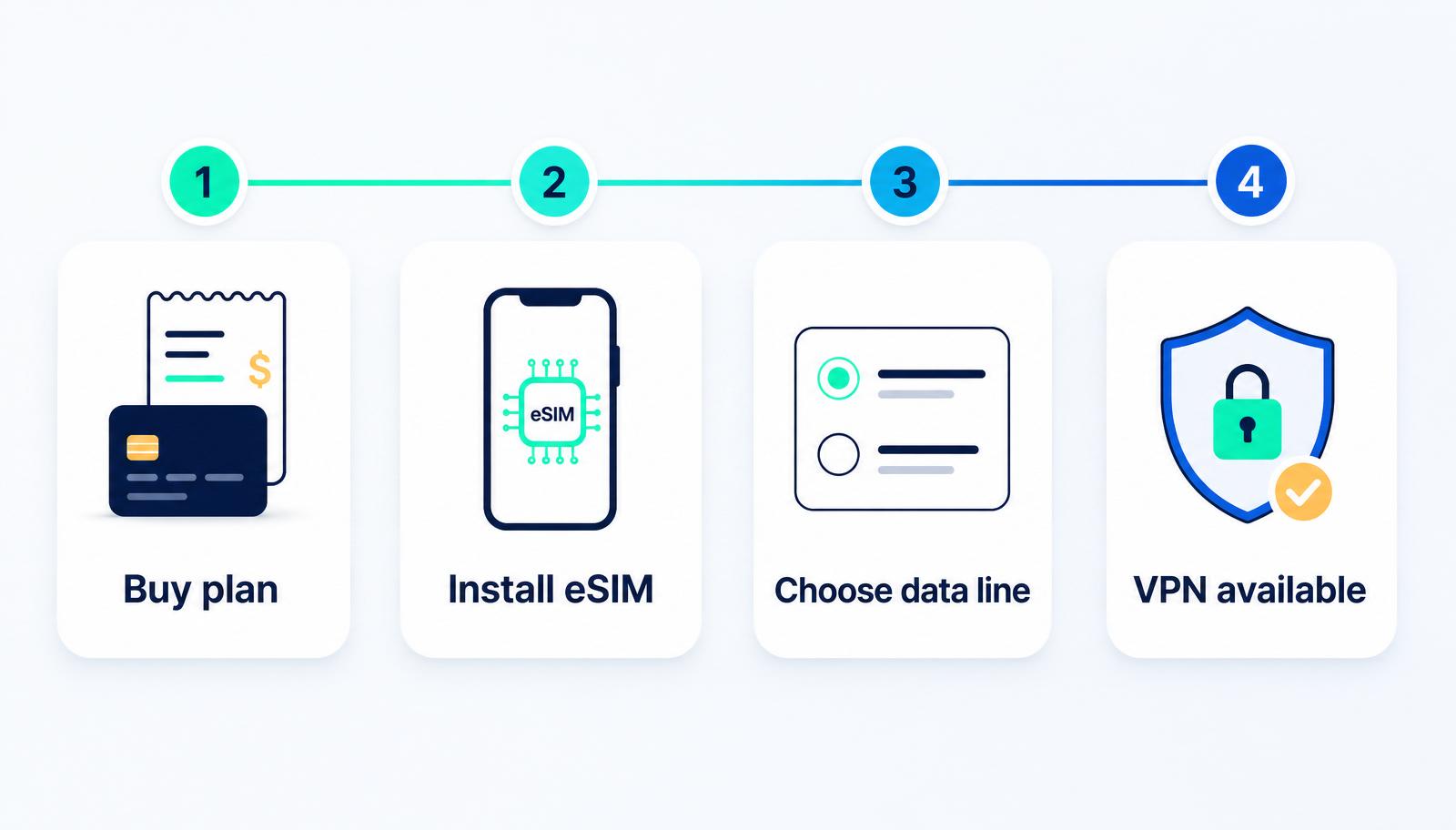
The simple setup flow
Buy plan → Install profile → Choose data line → VPN when needed
- 1Before you fly
Buy your destination plan
Choose your destination and data amount before you travel.
- 2Install
Install the eSIM profile
Use the QR code, activation link, app flow, or manual details provided after checkout.
- 3Arrival
Choose it for mobile data
Keep your home SIM for calls or texts if needed, and use the travel eSIM as your mobile data line.
- 4In the app
Turn on the included VPN when needed
Use the included VPN in the app when you want privacy, security, and unrestricted internet.
How to install on iPhone
Most travelers with iPhone 11 or newer can use eSIM. Older supported models include iPhone XS, iPhone XS Max, iPhone XR, and iPhone SE 2nd generation or newer. Setup usually needs Wi-Fi or hotspot, and your setup method may use a QR code, activation link, app flow, carrier activation, Quick Transfer, or manual details depending on the provider.
iPhone
iPhone 11 or newer
Also supports iPhone XS, XS Max, XR, and iPhone SE 2nd generation or newer.
- Open Settings → Cellular or Mobile Data → Add eSIM.
- Use the setup method provided in your order.
- Label the eSIM clearly, for example Travel eSIM or the destination name.
- Keep your home line available for calls and SMS if needed.
- When abroad, choose the travel eSIM under Cellular Data / Mobile Data.
- Remember: iPhone uses one cellular data network at a time.
- Keep home SIM data roaming off if avoiding home-carrier roaming charges.
- Turn data roaming on for the travel eSIM only if your plan instructions require it.
Model and regional support can vary, especially for devices sold in mainland China, Hong Kong, and Macao. Use the compatibility checker if you are unsure.
How to install on Android
Android labels vary by brand and region, so do not panic if your settings look slightly different. Look for SIMs, SIM manager, Mobile network, Add SIM, Add eSIM, or Add mobile plan.
Android
Pixel
- Settings → Network & internet → SIMs → Add SIM → Set up an eSIM.
- Follow the setup prompts from your provider or order.
- Choose which SIM is used for mobile data, calls, and texts.
- Only one SIM is normally the default for data.
Android
Samsung Galaxy
- Settings → Connections → SIM card manager → Add mobile plan.
- Add using QR code, pre-assigned plan, or activation code if provided.
- Make sure the phone has Wi-Fi or mobile data before adding the plan.
The roaming toggle that confuses people
Read this before you toggle anything
Travel eSIMs often connect through roaming agreements with local networks. That means the travel eSIM line may need data roaming turned on. This is different from turning on data roaming for your home SIM. If you want to avoid home-carrier roaming charges, keep data roaming off on your home SIM and use the travel eSIM as the mobile data line.
What to do when you arrive
You already installed the profile at home. Landing is now about selecting the right line and confirming a couple of settings.
- Confirm the travel eSIM is turned on.
- Choose the travel eSIM for mobile data.
- Keep home SIM data roaming off if avoiding home-carrier charges.
- Turn travel eSIM roaming on only if the plan requires it.
- Turn on the included VPN in the app when wanted.
What not to do
- Do not delete the eSIM while you still need it.
- Do not delete and reinstall repeatedly. Some eSIM profiles can only be installed once.
- Do not wait until you are already at the destination with no internet.
- Do not turn on data roaming on your home SIM unless you understand your home carrier's roaming charges.
- Do not assume VPN is on — turn on the included VPN in the app when you want it.
One-time credential
Treat your setup details like a one-time credential
Keep your order email, QR code, activation link, or manual details until the eSIM is installed and working. If setup fails, contact support before deleting anything — some profiles cannot be reused.
If data does not work after arrival, check in this order
Walk through these steps in order before contacting support. Most issues are settings, not the eSIM itself.
- Confirm the eSIM is installed.
- Confirm the travel eSIM is turned on.
- Set the travel eSIM as the mobile data line.
- Turn mobile data on.
- Turn data roaming on for the travel eSIM if your instructions require it.
- Keep home SIM data roaming off if avoiding home-carrier roaming charges.
- Toggle airplane mode for 20–30 seconds.
- Restart the phone.
- Move to an area with better signal.
- Contact support with your order details.
Official sources referenced
This guide is based on official Apple, Google Pixel, Samsung, and GSMA documentation, then adapted for travel eSIM setup with eSIMbundle.
Frequently asked questions
Should I install my eSIM before I travel?
Yes. Install the eSIM profile before your trip while you still have reliable internet. That gives you time to check the setup before you need mobile data abroad.
Does installing the eSIM mean my plan starts immediately?
Installing the profile adds the eSIM to your phone. It is not the same as choosing it as the active mobile data line. Your plan details, validity, and usage rules are shown during checkout and in your order instructions.
Do I need Wi-Fi to install a travel eSIM?
Usually, yes. Apple, Google, and Samsung all recommend a Wi-Fi or mobile data connection to download and install an eSIM profile. Use a reliable connection before your trip instead of waiting until you arrive.
Can I keep my normal SIM active?
Yes. Many travelers keep their home SIM active for calls or SMS and use the travel eSIM as the mobile data line. Keep data roaming off on your home SIM if you want to avoid home-carrier roaming charges.
Should data roaming be on for the travel eSIM?
Follow the setup instructions for your plan. Travel eSIMs often connect through roaming agreements, so the travel eSIM line may need data roaming turned on. That is different from turning on roaming for your home SIM.
Does the included VPN turn on automatically?
No. VPN is included at no extra cost, but you turn on the included VPN in the app when you want privacy, security, and unrestricted internet abroad.
What if my eSIM does not work after I arrive?
Check that the eSIM is installed, turned on, selected for mobile data, and allowed to use data roaming if required. Then toggle airplane mode, restart your phone, and contact support if it still does not connect.
