Quick answer
How do I set up the included VPN before travel?
Sign in to eSIMbundle, open Account → VPN, prepare your VPN access if prompted, download VPNclient for your device, and sign in with the VPN username and password shown in your account. The account page manages your VPN access and credentials; the actual VPN connection is started and stopped inside VPNclient.
You can install the app and save your credentials before travel. If your status says Waiting for bundle start, your VPN account is prepared but the VPN connection will not work until the associated data bundle starts.
Your account and VPNclient have different jobs
The VPN page inside your eSIMbundle account is where you prepare access, check the current status, reveal your VPN username and password, change the VPN password and find the correct app download. It is a management page. It does not directly connect your phone, tablet or computer to the VPN.
VPNclient is the app that makes the connection. After downloading it, sign in with the separate VPN credentials shown under Account → VPN, choose a VPN location and select Connect.
Your normal eSIMbundle sign-in password and your VPN password are separate. Use the VPN username and VPN password from the VPN page when signing in to VPNclient.
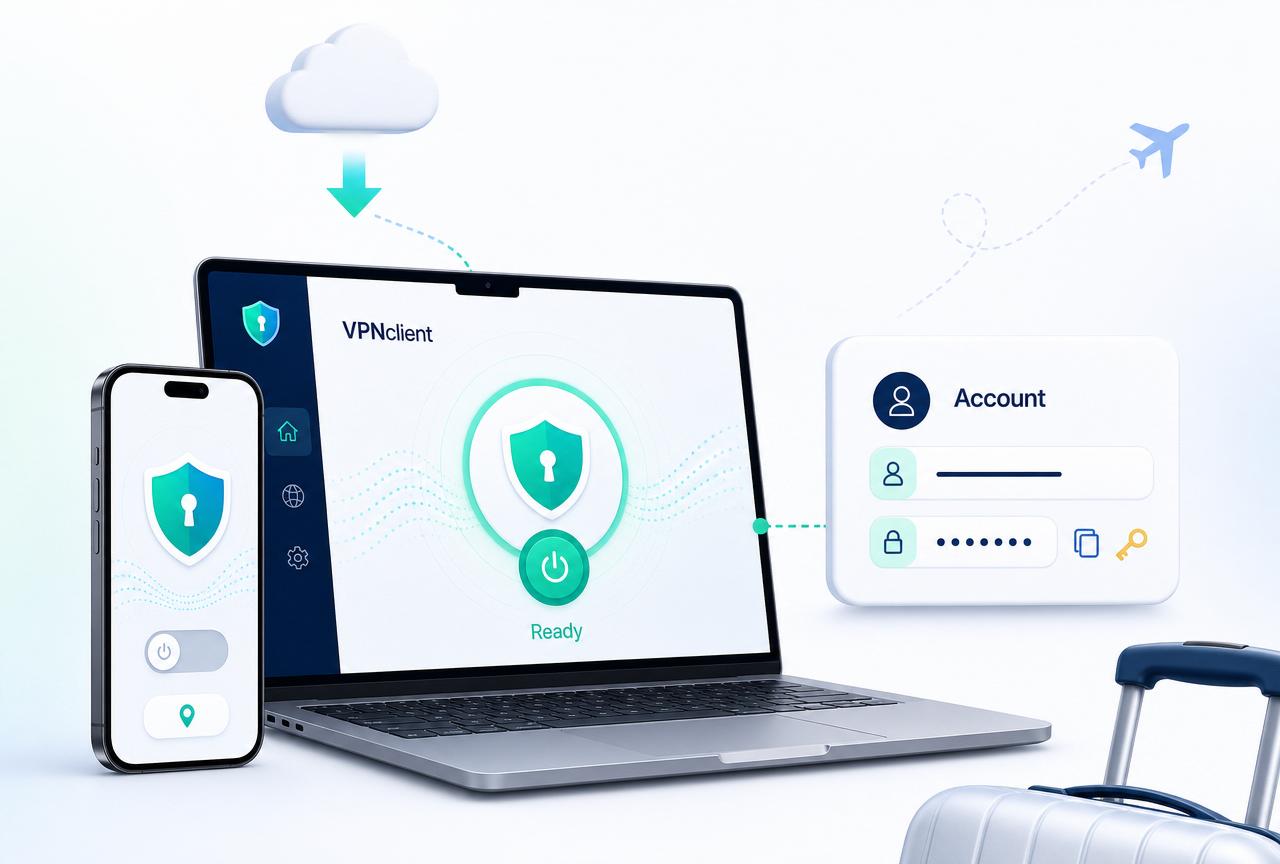
VPN setup snapshot
- Manage accessAccount → VPN
- Connect withVPNclient
- LoginSeparate VPN credentials
- AvailabilityFollows your data bundles
Avoid these mistakes
- Trying to connect from the account page
- Using the website password in VPNclient
- Assuming the VPN connects automatically
- Waiting until the airport to install the app
Before you start
Prepare the app and credentials while you still have reliable internet. This avoids needing to download an app, recover a password or search for login details after landing.
- An eSIMbundle plan connected to your account
- Access to the email address used for the purchase
- A reliable internet connection for downloading VPNclient
- The phone, tablet, computer or TV device you want to use
- Your normal eSIMbundle account sign-in details
- Enough time to download the app and save your separate VPN credentials
Buying an eSIMbundle plan gives you access to the included VPN, but the VPN connection itself follows the status of your data bundles. Preparing the app does not start a data bundle.
Prepare your VPN access
After purchasing an eSIMbundle plan, open the VPN page inside your account. Most accounts are prepared automatically, but the page may ask you to complete the preparation step.
- Sign in to your eSIMbundle account.
- Open Account → VPN.
- If the page shows Preparing your VPN access, select Prepare VPN access.
- Wait for the account to be created and then refresh the status if needed.
- Once the account exists, save the username and reveal the VPN password.
- Download VPNclient for the device you want to use.
No plan in your account?
The included VPN is connected to an eSIMbundle purchase. If the VPN page shows that you do not have a bundle yet, choose a destination and purchase a data plan first.
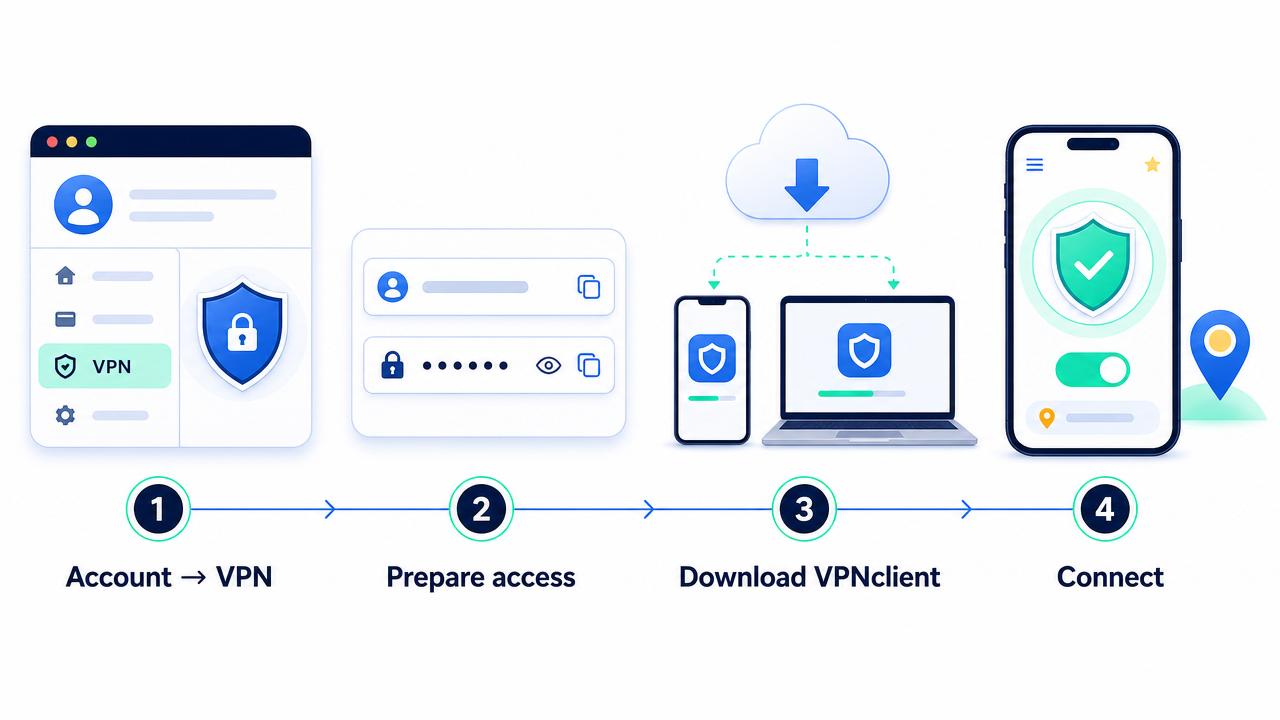
Browse destinationsThe simple VPN setup flow
Account → Prepare → Download → Connect
- 1Account
Open Account → VPN
Manage your VPN status, credentials, password and app downloads.
- 2Prepare
Prepare and save access
Prepare the account if prompted, then save your VPN credentials.
- 3Download
Install VPNclient
Download the correct VPNclient app for the device you want to use.
- 4Connect
Sign in and connect
When access is active, choose a VPN location and select Connect.
Download VPNclient for your device
Use VPNclient on the device where you want to make the VPN connection. Download the app from the platform link shown in Account → VPN, then sign in using the VPN username and password from that page.
Windows
Download VPNclient for Windows.
DownloadmacOS
Download VPNclient for Mac.
DownloadiPhone and iPad
Get VPNclient from the App Store.
DownloadAndroid
Get VPNclient from Google Play.
DownloadLinux
Download VPNclient for Linux.
DownloadFire TV and Android TV
Download VPNclient for a compatible TV device.
DownloadFind your VPN username and password
Your VPN username and password are shown separately from your normal eSIMbundle account login. Use these VPN credentials only inside VPNclient.
- Open Account → VPN.
- Find VPN sign-in details.
- Copy the VPN username shown on the page.
- Select Reveal to display the VPN password.
- Copy the password and use it when signing in to VPNclient.
- Hide the password again after saving it securely.
Two different passwords
Do not use your normal account password in VPNclient
Your eSIMbundle account password is used to enter the website. Your VPN password is used to sign in to VPNclient. They are separate credentials and may be different.
Change your VPN password
You can replace the generated VPN password from Account → VPN. Changing it updates the password used by VPNclient; it does not change the password used to sign in to the eSIMbundle website.
- Open Account → VPN.
- Select Change password under VPN sign-in details.
- Enter the new VPN password.
- Enter the same password again to confirm it.
- Select Save new password.
- Sign in again on devices that were using the previous password.
The VPN password must contain 6–50 characters and may not contain control characters. There is no requirement to include a particular mix of uppercase letters, lowercase letters, numbers or symbols.
Understand your VPN status
The VPN page uses the status of your data bundles to show whether your account can connect now, is prepared for later or is currently dormant.
Waiting for bundle start
VPN setup ready
Your VPN account is prepared. You can download VPNclient and save your sign-in details now, but the connection will only work once the associated data bundle starts.
Active
VPN active
Your VPN access is active and ready to use. Open VPNclient, sign in, choose a VPN location and connect.
No active bundle
VPN dormant
Your VPN account is saved, but there is no active data bundle providing VPN access. Purchase another bundle; access becomes available after that bundle starts automatically on first use.
Active access does not mean your device is already connected. You must still open VPNclient and select Connect.
What to do when you arrive
Once your eSIMbundle data plan is active and mobile data is working, you can use the included VPN through VPNclient.
- Confirm the travel eSIM is providing mobile data.
- Open VPNclient.
- Sign in with the VPN username and password from Account → VPN.
- Choose the VPN location you want to use.
- Select Connect.
- Check that VPNclient shows an active connection.
- Disconnect from inside VPNclient when you no longer want to use it.
You can also use VPNclient while connected to hotel, airport, café or other public Wi-Fi.
What not to do
- Do not try to connect directly from the eSIMbundle account page.
- Do not use your normal eSIMbundle password when VPNclient asks for VPN credentials.
- Do not assume Waiting for bundle start means the VPN connection is already available.
- Do not assume Active means VPNclient is already connected.
- Do not share your VPN username or password with another person.
- Do not wait until you have unreliable airport Wi-Fi to download the app.
- Do not repeatedly reinstall VPNclient before checking your status and credentials.
Remember
The website manages access; the app makes the connection
Account → VPN is where you manage your VPN account. VPNclient is where you choose a location and connect or disconnect.
If the VPN does not connect, check in this order
Check the account status, internet connection and sign-in details before reinstalling anything or contacting support.
- Confirm that normal mobile data or Wi-Fi works without the VPN connected.
- Open Account → VPN and check the current VPN status.
- If the status is Waiting for bundle start, check whether the associated data bundle has started.
- If the status is No active bundle, purchase a bundle and wait for provider-confirmed first use before trying again.
- Confirm that you are using the VPN username, not only your email or website login.
- Reveal and copy the VPN password again instead of typing it from memory.
- Change the VPN password if you are unsure which password is current.
- Close and reopen VPNclient.
- Try another VPN location inside VPNclient.
- Update or reinstall VPNclient only after completing the checks above.
- Contact support with your device type, operating system, VPN status and the exact error shown.
Official sources and downloads
This guide reflects the current eSIMbundle Account → VPN workflow and the official VPNclient download listings available from the account page.
Frequently asked questions
Is VPN included with every eSIMbundle plan?
Yes. Every eSIMbundle data plan includes VPN access at no additional cost. The VPN account and app can be prepared before travel, while the ability to connect follows the status of your active data bundles.
Can I connect to the VPN from the eSIMbundle website?
No. The website is used to manage access, view the VPN status, reveal credentials, change the VPN password and find app downloads. The actual connection is started and stopped inside VPNclient.
Can I download VPNclient before my data plan starts?
Yes. You can download VPNclient and save your sign-in details before travel. If the account says Waiting for bundle start, the app is prepared but the VPN connection will not work until the associated data bundle starts.
Why does my VPN say Waiting for bundle start?
This means the VPN account is prepared but the associated data bundle has not started. You can save your credentials and install VPNclient now, then connect after the bundle becomes active.
What does VPN dormant mean?
VPN dormant means your VPN account is still saved, but there is currently no active data bundle providing access. Purchasing another bundle makes the account available again after the provider confirms first use.
Do I use my normal eSIMbundle password in VPNclient?
No. VPNclient uses the separate VPN username and VPN password shown under Account → VPN. Your normal account password is only used to sign in to the eSIMbundle website.
Can I change the VPN password?
Yes. Open Account → VPN, select Change password, enter and confirm a new password, and save it. Devices using the previous password may need to sign in again.
Which devices can use VPNclient?
VPNclient downloads are available for Windows, macOS, iPhone, iPad, Android, Linux, Fire TV and compatible Android TV devices. Use the platform links shown in Account → VPN.
Does Active mean my device is already connected?
No. Active means your VPN access is available. You must still open VPNclient, sign in, choose a VPN location and select Connect.
